|
Navigation: Purchasing (Main Module) > My Team (users) User Master File |
Scroll Prev Top Next More |
PURCHASING > My Team > Add/modify/delete users

The User Master File contains information about the people in your company who use SpendMap (i.e. staff members). Suppliers can also access the system via the Supplier Portal but their user accounts are set up in the Supplier Master File, not here.
Each user can have different access/rights in SpendMap. You can restrict users to certain modules and menus within each module, in the [Modules] tab. You must assign at least one module to a user before they can log in to SpendMap.
Each transaction in SpendMap is “stamped” with the User ID for easy reference and many fields on Purchase Orders and other documents can default based on the user entering the transaction to save time and reduce data entry. For example, the cost center (department, business unit) would typically default on new Purchase Orders and other documents based on the user.

Rather than configuring the settings in the various tabs for each user separately, you can use the User Menu Group feature to update the settings for many users at once. |
Additional security/access features can be configured in the following sections of the Purchasing (main) Module. •For each user: various menu options under MY TEAM > •System-wide: various menu options under SETTINGS > SECURITY AND PASSWORD OPTIONS > |
SpendMap offers both Named User licensing and Concurrent User licensing, so your SpendMap system may be limited to 1) a maximum number of named users (i.e. total number of user ID codes in the User Master File), or 2) a maximum number of concurrent (i.e. the number of people logged in simultaneously). If you purchased a Concurrent User license, there will be no limit to the number of named users that you can add to the system but users may be prohibited from logging in from time to time, when/if the concurrent user license is full. For example, if you own 10 concurrent licenses, the 11th user that tries to log in simultaneously will get a “license full” message. |
In addition to creating new users in the User Master File, user information can also be imported from other systems. |
You can track changes to this master file with the Master File Update Log. |
In addition to the User Master File, SpendMap includes a Request-By field on POs and other documents that can be used to record the individual that needs an item being purchased (i.e. the end-user of the item) when that person is not creating the order in SpendMap him or herself. That is, Request-By codes can be used when someone is ordering on behalf of someone else. |
Passwords for new users: When new users are added and saved, you will be prompted to enter a temporary password for the user. The user will be prompted to change their password the first time they log in to the system. Also, there may be restrictions on passwords, such as the minimum number of characters, available characters you can use, etc. For details, see Application Password Management Settings. User Roles: To save time when adding multiple user accounts with similar settings, you can optionally copy the details of existing user accounts or User Roles, to prepopulate the new user's menus and settings in the various Tabs of the User Master File. The details that are copied from another user or User Role can then be adjusted for the new user. User Roles are simply preconfigured user templates for common user types. See also User Groups. When you add a new user, the following dialog will be displayed where you can copy an existing user account or user role/template, or you can select "Custom" to start with a blank user account and enter the details manually...
|
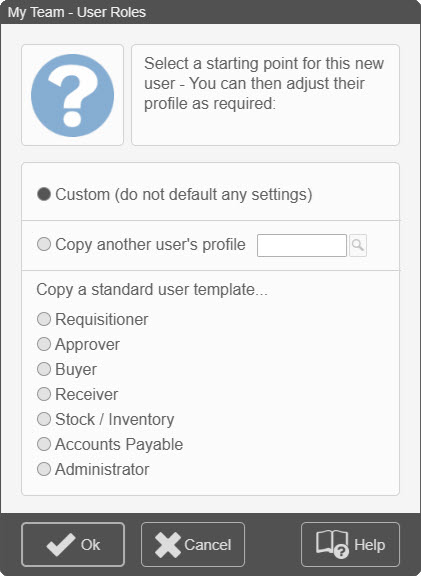
When you delete a user from the User Master File, if that user has unprocessed Purchase Orders or other documents in any of their document Work Areas, or if the user's ID code is specified in any system settings, SpendMap will give you the option to transfer those documents/transactions and settings to another user. Alternatively, you can cancel the User Delete operation and then manually change any settings and process, delete, transfer or otherwise empty the user’s document Work Areas, before deleting the user but all document Work Areas and settings must be empty before the user can be deleted. When user accounts are initially deleted, they will show in the user master file as "N/A" with a description of "DELETED (REMOVED LATER)". These deleted user accounts will be automatically removed the next time the user file is opened exclusively (e.g. during the next reindex of the system or other maintenance operation). |
User information is organized into a series of tabs....
Tab |
Contents of the Tab |
•Address and other contact information for the user. |
|
•Determines which modules the user has access to. |
|
•Settings and default information that will carry forward to POs and other documents. |
|
•Used to enable/disable or configure various system features for the user. |
|
•Used to restrict users to a subset of codes in various Master Files. |
|
•Used to enable/disable various automatic email notifications for the user |
|
•Used to enable/disable various features in the SpendMap Mobile Web App for the user. |
|
•Used to assign one or more Executive Dashboards to the user. |
Name/Address Tab
The [NAME/ADDRESS] Tab contains the user’s address and other contact information. Some of this information will be copied onto POs and other documents and the contact information may also be used for reference purposes, for example, if someone ever needs to contact the user to inquire about an order.

Field |
Description |
||
User ID Code |
•Used to reference the User on screens and reports. •Users can log in to SpendMap with their User ID or email address, below. •Once the user information is saved, you will not have access to this field; to modify an existing User Code, use the Rename Utility. •Can be up to 6 characters and can only contain letters (A-Z) and numbers (0-9) but cannot begin with a number. •This is a mandatory field. •Also see references to “Windows user ID” field, below. |
||
User Name |
•The user’s full name. •May print on forms and can be searched when searching for user codes throughout the system. •This is a mandatory field. |
||
Address, ZIP |
•Used for reference purposes. May be copied onto POs and other documents. |
||
Country Code |
•Used to identify the user's country (location). While future functionality will take into account the user's country, at the time of writing this is only used to override the default the paper size for reports (from Letter to A4 paper). |
||
Phone/Mobile |
•Used for reference purposes. •May be copied onto POs and other documents. |
||
Email Address |
•Users can log in to SpendMap with their email address or thier User ID, above. •The email address will also be used for the "Forgot My Password" feature on the login screen. •Depending on the user's message delivery preference in email settings, the email address may be used for automatic email notifications and other messages for the user. •To create an email message for the user in your default email system, click on the [ |
||
Windows user id |
•This field is used for two purposes, 1) Automatic Login and 2) Active Directory integration, both of which simplify password management and make it easier for valid users to access SpendMap.
|
||
Accounting Code |
•This can be used to replace the User ID Code specified in SpendMap when exporting expense reimbursement transactions to your Accounting/financial/ERP or other systems. •If this field is populated, the contents of this field it will be used instead of the User ID Code entered in SpendMap, when exporting expense reimbursement transactions . •Sometimes called "code mapping", this allows you to use different coding in SpendMap than in your other systems. |
 ]
]
Modules Tab
The [Modules] Tab determines which system modules (and optionally which menus within each module) the user has access to. You must assign at least one module to the user before they can log in to SpendMap.
Selecting ( ) a module will create user-definable menus for the user, which can optionally be customized using the [Customize menu access within module] button below the list.
To save time, you can also use the [Copy another user's menus] button as a starting point, and then optionally use the button above to make changes for this user.
Settings Tab
The [SETTINGS] Tab contains settings that control various features for the user and also default information that will carry forward to POs and other documents.
Field |
Description |
||
|
User Settings |
||
Reserve license for this user? |
•SpendMap offers both Named User licensing and Concurrent User licensing. If you purchased a concurrent user license, you may have more user accounts in the User Master File than concurrent licenses. •This feature allows you to “reserve” a concurrent license for the user, even when they are not logged in, so that the user can always log in. •This can be used to provide a higher level of access for your “core” (priority) users. |
||
User menu group |
•The master menu group to copy when setting up multiple users with the same access rights.
|
||
•Used to group users together, for requisition approval routing in the Requisition Module. |
|||
|
Document Settings |
||
PO/Req/RFQ number set |
•The default document number set for the user. Will default on POs and other documents but can be changed by the user (unless the “Force” option is selected – see below). •This will default the applicable PO number set or Requisition number set or RFQ number set when the user creates the applicable document. |
||
Force? (number set) |
•Locks the user to their default document number set (see above). |
||
•Select this option to automatically assign the next available document number in the user’s default document number set (see above) when documents are built automatically from other areas of the system (e.g. when POs are built from approved requisitions, when documents are build from the Staging Batch, etc.).
|
|||
•For use in the Requisitioning Module, these are the user’s approval levels, for use if this user will be approving requisitions. If not, leave the field blank. •Each user can belong to up to 5 approval groups/levels. •You can enter the approval levels/characters if you know them by heart or you can use the •This may also be used if you are routing POs that are built from approved requisitions to "Multiple Buyers based on routing rules" using the setting "Route POs To" in Misc. Approval Rules and Settings. If this user is a "Buyer" (see related check box for "Requisition buyer routing", below), the first approval level entered in this field is the “primary” level that will be used to route the resulting POs and other procurement documents. |
|||
Requisition buyer routing |
•If you are using the Requisitioning Module and you are routing POs that are built from approved requisitions to multiple Buyers based on routing rules using the setting "Route POs To" in Misc. Approval Rules and Settings, this setting indicates that this user is a Buyer and may be considered to receive the resulting POs (again, based on the business rules that you have established). If checked, you must enter an Approval Group in the Requisition Approval Groups field, above. •This setting is also used to indicate that this user is a Buyer for the Buyer Performance Report. NOTE: This setting is used exclusively for the two features outlined above. This setting does NOT need to be enabled in order for the user to create Purchase Orders in their PO Work Area. They will be able to access the PO Work Area if that option is included in their User Definable Menu, whether or not this setting is enabled. |
||
Default proxy user |
•The default proxy approver for the user, for use in the Requisitions and Approval Module. The user can change/override this when enabling the proxy user. |
||
|
Field Defaults |
||
•The user’s default charge-to Cost Center code, which will default onto POs and other documents. If left blank, the user will be required to manually enter their cost center when creating the documents.
•This field is also used to determine the user's Cost Center (and by association, their Division) in areas of the system that display or restrict the user to their own business unit's information. A few examples include... |
|||
•The user’s default ship-to Cost Center code, which will default onto POs and other documents. If entered, the user’s default ship-to will override (take precedence over) the system-wide default ship-to. |
|||
•The user’s default Inventory Location, for use in the Inventory Control Module and if you are using multiple stock locations. If you are not using multiple inventory locations, leave the field blank. •The Location Code will default when entering or processing various inventory transactions to reduce data entry for the user.
|
|||
|
Invoice Discrepancy Settings |
||
•For use in the Invoice Approval Module, these four fields determine the maximum invoice discrepancy (i.e. difference between the PO amount and the invoice amount) that the user is permitted when entering PO-related invoices. •Depending on the settings in Invoice Options, if a discrepancy occurs when entering invoices, the user will either be stopped (prohibited from processing the invoice) or the invoice will be logged for approval.
|
|||
Negative invoice errors (ignore negatives) |
•When this option is enabled ( |
||
[User Preferences] (opens separate dialog) |
|||
Number format preference |
•This setting can be used to override the formatting of numeric fields (including currency fields) throughout the system, if this user's preference is different than the system-wide setting in User Defined Field Settings. •If this user does not wish to use the system-wide default formatting for numeric/currency fields, select either North American or European formatting for this particular user (e.g. 123,456.78 vs. 123.456,78). |
||
<Enter> and <Tab> key functionality |
•When using SpendMap, both the <Enter> and <Tab> keys can be used to move from field to field, or <Enter> can save the entire screen (or, more accurately, <Enter> can invoke the default button, which is usually [OK] or [Done] on most screens). |
||
•Enables the Control Center, when there are activities/tasks/documents that require the user’s attention. •You can also enable "document waiting indicators" (batch counts) on the applicable Toolbar Icons, to let you know how many documents are in each Work Area. |
|||
Group box contrast effect |
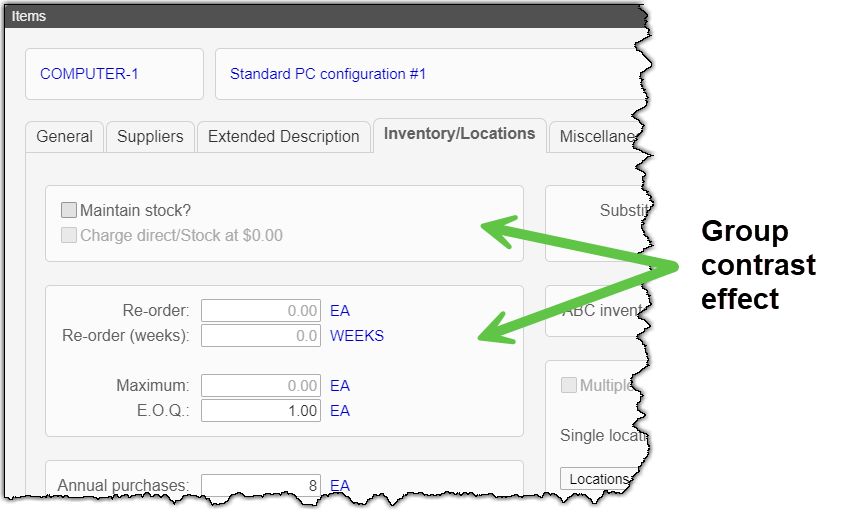
•On many screens in SpendMap there will be related/associated screen elements, for example, fields or instructions that "go together". •To help associate/group the related screen elements with one another, SpendMap will draw a line/border around the related elements, to show that they are related. •Use this setting to also use a slightly different background color in those regions of the screen, to further emphasize the grouping of related items on the screens. •This is a visual/aesthetic option only and does not affect the use of the system.
|
||
Audible prompts (beeping) |
•For the Desktop Application only, you can enable or disable sounds that accompany certain warning messages and other system events. |

Permissions Tab
The [PERMISSIONS] Tab is used to enable/disable or configure various system features for the user.
Field |
Description |
|
•Check this box if this user is a SpendMap System Administrator, which is required to perform certain maintenance and security related functions, as outlined below. •If a user who is not a System Administrator attempts to perform any of these functions in SpendMap, they will either be stopped and will receive an error message, or they will be prompted to enter a System Administrator's login credentials to continue. •IMPORTANT: If no users are set up as System Administrators, all users with an Access Level of 9 will be considered to be Administrators (until there is at least one user set up as an Administrator). If no users are set up as System Administrators AND there are no level 9 users, then ALL users become Administrators.
|
||
•The user’s Access Level determines whether or not this user will have access to certain features when using SpendMap, as outlined below. •The lowest access level is zero (0) and the highest is nine (9). •The user's Access Level does NOT affect which menus (e.g. utilities, reports, etc.) the user has access to. Rather, that is determined by their User Definable Menus.
|
||
•If required, select an option to limit/restrict the POs and other documents that this user can view/access when working in the Purchasing, Receiving and Requisitions Modules. For example, you may want to restrict the user to only being able to see/access only their own documents or perhaps their Cost Center's documents.
•NOTE: This setting does not apply to the system's reports. •TIP: The user's Cost Center is specified in the [Settings] Tab. |
||
•Checking this box allows the user to add Master File codes "on-the-fly". |
||
Allow user to enter one-off (non-catalog) items? |
•Checking this box allows this user to enter one-off (free form) items on POs and other documents and transactions throughout the system. One-off items are items that are not in the Item Master File. •If unchecked, the user will not be able to enter an asterisk (*) in the Item Code field on POs and other documents and will be forced to select from the Item Master File for each line item. •NOTE: This setting applies to items only but not other Master Files. |
|
Allow ability to change ‘stock-at-no-value’ option? |
•If you are using the Inventory Control Module and the Direct Charge Stock Items feature, you can allow the user to change the option for each PO line with this setting. •To permit this user to charge items directly to cost centers on POs and bypass inventory, check this box, otherwise any Direct Charge Stock Items will always go to stock at zero value. |
|
Allow user to over-receive purchase orders? |
•If using the Receiving Module, checking this box allows the user to receive more than the original PO quantity on the single-line receiving screen, otherwise the user will only be able to receive up to the PO quantity. |
|
Allow user to modify notes and attachments on processed POs? |
•Checking this box allows the user to modify internal notes and attachments on processed POs (e.g. in View PO Status), otherwise the user will be able to view the notes/attachments, but not modify. •Also see related system-wide setting in User Defined Field Settings. |
|
Allow user to modify notes and attachments on processed Requisitions? |
•Checking this box allows the user to modify internal notes and attachments on processed Requisitions (e.g. in View Requisition Status), otherwise the user will be able to view the notes/attachments, but not modify. |
|
Allow ability to re-route and add approvals to Requisitions? |
•If you are using the Requisitions and Approval Module, check this box to allow this user to access the [ADD APPROVER] and [ROUTE TO ANOTHER BUYER] buttons on the Requisition Approval Item Detail Screen, otherwise the user will not have access to those functions. |
|
Only allow user to approve Requisitions for their Cost Center? |
•For use with the Requisitioning Module, this option restricts this user to only approving Requisitions for their own Cost Center. That is, if there are requisitions requiring this user's approval level for cost centers other than this user's default cost center, this user will only be able to approve those requisitions that are for his or her default cost center. •Both the user’s approval level and default cost center are set for the user in the [SETTINGS] Tab). •See similar setting for Division, below.
|
|
Only allow user to approve Requisitions for their Division? |
•Same functionality as the previous setting (for Cost Center), only this restricts the user to only approving requisitions for their Division, which is a group of cost centers. See references to the Division Field in the Cost Center Master File. |
|
Allow user to invoke priority maintenance? |
•Checking this box allows the user to invoke the Priority Maintenance feature that can be used to temporarily suspend other users' work while certain maintenance functions take place. •This feature can also be turned on or off for the system as a whole (i.e. system wide). |
|
Prompt upon login to reindex and archive closed POs? |
•The two most frequent maintenance procedures in SpendMap are 1) reindexing and 2) archiving closed POs. Since these procedures need to be run fairly often, this setting can be used to remind one or more users to perform these procedures. •If this option is enabled, this user will be prompted to run the procedures occasionally when they log in to SpendMap. •If you use this feature, ensure that the applicable user(s) are frequent users of the system. If not (i.e. if they don’t log in very often), the maintenance procedures may not be run in a timely manner. |
|
•If you are using the Receiving Module and the Auto-Receipts feature, you can use this option to remind this user to run the Auto Receive process occasionally when they log in to SpendMap. |
||
•Checking this box allows this user to purge (delete all records in) Master Files when importing data. This is intended for a complete refresh of the applicable Master File. •If unchecked, this user will not see the applicable prompt to purge when importing. |
Catalogs Tab
The [CATALOGS] Tab contains the Master File Catalogs that this user will be restricted to when creating POs and other documents throughout the system. A blank field means that the user can select Master File codes from any catalog. You can fill in one or many fields.
If a user is restricted to a Master File Catalog, the Master File codes in that catalog will be the only codes that the user will have access to when performing a Lookup or when manually entering codes into the applicable data entry field in the system. Therefore, it will appear to the user that the codes in the catalog represent the entire Master File even though there may be many more codes in the actual Master File.
Users can be restricted to Master File codes in one or more of the following Master Files: Supplier, Item, Cost Center and G/L Account.
TIP: You can also restrict access to items in the Item Master File with the Set Item Access Level Utility.
Email Notifications Tab
The [EMAIL NOTIFICATIONS] Tab is used to enable/disable various automatic notifications for the user.
For each notification that shows a check mark () in the “Include” column, an automatic message will be sent to the user when the applicable event occurs in relation to a document or transaction related to that user.
Users can read their messages in the internal messaging system or to their external email system. You can specify your message delivery preference in email settings.
In most cases, this means that they are the creator of the document (e.g. the Buyer who processed a PO). However, in many cases this also refers to the requestor, even though they themselves didn’t create the document but rather their user’s ID code appears in the Request-By Field on the document. For example, if a PO is processed by MARY for an item that was requested by JOHN, both John and Mary will receive notification of the receipt of the order (assuming both users have the applicable message enabled here). Since some of your staff may request items but may not be users of SpendMap (i.e. don’t exist in the User Master File), you can also set up notifications in the Request-By Master File so that these staff members can also receive notifications by email. Finally, in some cases “related to that user” refers to someone who has to work on the document, even though they did not process the document or request the item. For example, managers can receive notifications when other people’s requisitions require their approval. |
Message |
Notes |
One or more requisitions need your approval (one notification per approval session) |
•You will not receive another notification until you visit the Requisition Approval Utility, even if additional Reqs are processed. When you visit the Approval Utility, you will see all Reqs that need your approval. •If you prefer to be notified when each new Req is processed, use the next option, below, instead. •NOTE: If you are using the Email Approvals feature, this setting is ignored and approvers will receive a separate email notification for each new Req, per setting below. |
A new requisition needs your approval (notification for every new requisition)
|
•You will get a notification for each and every Req, as they are processed. When you visit the Approval Utility, you will see all Reqs that need your approval. •See also the previous option, above. •There are two options for the email notification itself, either... |
A new requisition was processed that does not need any approval
|
A new requisition was processed that 1) was not assigned any system-generated approval levels, and 2) the Requisitioner also did not select any approval levels manually when the requisition was entered in their Work Area. This email notification does not consider any approval levels that might be assigned to the requisition based on the settings "Default approvals when none exist" and "Last approval for all requisitions", in Miscellaneous Approval Rules and Settings. That is, this notification will still be sent if the requisition's only approval levels are assigned from one of the two settings above. The intent of this notification is to notify Management when a requisition does not require any approvals based on the information entered on the requisition. |
Your requisition has been approved (excludes Expense Reimbursement Requisitions)
|
•A requisition that you created or requested has completed the approval process (i.e. fully approved). •See separate notifications, below, for when reqs are actually filled from stock or the items are ordered. |
Your Expense Reimbursement Requisition has been approved |
•An Expense Reimbursement Requisition that you created or requested has completed the approval process (i.e. fully approved). You can expect to receive reimbursement for your request shortly. |
Your requisition has been rejected during the approval process
|
•A requisition that you created or requested or previously approved was rejected during the approval process. •Prior approvers will only be notified if subsequent approvers reject the requisition, based on the setting in Miscellaneous Approval Rules and Settings. |
Your requisition has been modified during the approval process
|
•A requisition that you created or requested or previously approved was modified during the approval process. •Prior approvers will only be notified if subsequent approvers modify the requisition, based on the setting in Miscellaneous Approval Rules and Settings. |
Your Item Requisition was filled from stock
|
•An item requisition that you created or requested was filled in the Stock Room. |
Your Item Requisition could not be filled from stock and the items were ordered
|
•An item requisition that you created or requested could not be filled from stock in the Stock Room and was ordered (i.e. sent to Purchasing to create a PO or RFQ). |
Your Item Requisition could not be filled from stock and the items were back-ordered
|
•An item requisition that you created or requested could not be filled from stock in the Stock Room and was back-ordered (i.e. remains as an open req and will be filled later). |
Your requisition was converted into a PO or other document and sent to a Buyer for processing |
•A requisition that you created or requested was converted/flipped into a PO, RFQ or other document and sent to a Buyer's Work Area. •See separate notification, below, for when subsequent documents are actually processed and sent to suppliers. |
The PO or other document that your requisition was converted into was processed (includes attachment of the PO) |
•The document that your requisition was converted into (e.g. PO, RFQ, etc.) was processed (e.g. Purchase Order sent to supplier). •In the case of a processed Purchase Order, the email notification will include a copy of the actual PO as an attachment. If you would prefer to NOT include the attached PO, use the next option instead. |
The PO or other document that your requisition was converted into was processed (notification only, no attachment) |
•Same as the previous option, but without the attached PO. |
A PO or other document was added to one of your Work Areas and needs to be completed and processed
|
|
A PO or Requisition that you created or requested was canceled by someone else |
|
Your PO or other document was downloaded by the supplier using the link in an email message |
•Your PO was received/downloaded by the supplier by clicking the hyperlink in the email message that they received from SpendMap. •TIP: This event will also update the PO Acknowledgment Utility, which you can use to keep track of your orders and make sure they are received by your suppliers. |
A PO that you are currently modifying has been approved or rejected |
•A PO that you are modifying with the Advanced PO Modification Utility has been approved or rejected. •This message only applies if you have indicated in PO Processing Settings that Change Orders require online approval. •The message is to let you know that the order has been “unlocked” in your PO Work Area. |
Your PO was received by someone else (excludes assets) |
•A PO that you created or requested was received by someone else. |
Your PO for an asset was received by someone else |
•A PO that you created or requested for an asset was received by someone else. •This is offered as a separate option from other receipts (above) as sometimes the receiver is not responsible for entering asset details into the Asset Master File. |
Your PO was partially received and closed |
•A PO that you created or requested was closed during the receiving process by adjusting the quantity (i.e. partially received and closed). •A special note to this effect is also included with the standard receipt notification (above). Therefore, you can choose to receive the standard receipts notification message (which includes a special note when the PO is closed at the receipts stage) or you can only receive this separate notification. |
Your PO was partially received and the balance is on back-order
|
•A PO that you created or requested was received in part (i.e. not fully received). |
An invoice discrepancy for one of your POs needs approval |
•An invoice discrepancy needs approval for a PO that you created. |
An invoice was matched to your PO before the item was received - The invoice is on-hold until you receive the PO |
•An invoice was matched to a PO that you created or requested before the item was received and therefore the invoice is on hold pending the receipt. •The intent of this notification is to remind you to receive the item. |
A non-PO invoice for something that you requested needs approval |
•A non-PO invoice for something that you requested was created and needs approval. |
There has been new activity in the Supplier Portal |
•Notifies the user about supplier activity in the Supplier Portal (e.g. supplier logged in, changed password, responded to RFQ, etc.) •You can also generate this information on demand with the Portal Activity Log. |
A system error has occurred |
•Notifies the user (typically a System Administrator) if a system error occurs. |
An important/critical message has been posted to the System Alert Log |
•Notifies the user (typically a System Administrator) whenever an important entry is posted to the System Alert Log (e.g. errors). |
A help message that you wanted to be notified about has been triggered/displayed |
•Notifies the user (typically a System Administrator) when certain pop-up Help Messages are displayed. •Only those specific messages that are set up to “Notify System Administrator” in Modify Help Messages will trigger a notification. That is, in addition to enabling the notification here, you must also do so for each applicable help message (typically only a few messages would justify a notification). •The notification for a particular help message will only be sent once and, if encountered/displayed again, will not be sent again until one of the users who is setup to receive these messages logs into the system, at which point all notifications will reset (will be sent again when they occur). •NOTE: Help messages that are displayed before users log in (e.g. invalid password, etc.) will not cause a notification to be sent. |
An unattended maintenance operation has completed or failed |
•Notifies the user (typically a System Administrator) as to the success or failure of an unattended operation. •At the time of writing, this applies to locking-down the system as well as for system reindexing but additional notifications of this type may be added in the future. |
Mobile Web App Tab (e-Series)
This Tab is used to enable/disable features in the Mobile Web App for the user.
For each option that shows a check mark () in the “Include” column, an option will be added to the Mobile Main Menu for the user.
Field |
Description |
Is this a |
•Check this box if this user will only be accessing SpendMap using the Mobile Web App but never using the full Web App or Desktop Application. •This is a performance-related setting only that will improve system performance by eliminating the need for SpendMap to maintain internal control files that are required for desktop computers. •This setting can be changed at any time for the user. However, if a user was previously setup with access to the full Web App or Desktop Application but you later check this box, the user's Web App and Desktop App menus will be removed during the next system re-index. |
Dashboard Tab
The [DASHBOARD] Tab is used to assign one or more Executive Dashboards to the user.
When using View My Dashboards, the user will only see the dashboards that are assigned to them here.
Option |
Description |
Is this a |
•Check this box if this user will only be accessing SpendMap to view the dashboards but no other areas of the system. If so, the dashboard will be displayed as soon as the user logs into the SpendMap Web App or the Desktop application, rather than displaying the Main Menu. •This is a performance-related setting only. |
Button |
Description |
[ADD] |
•Add a new dashboard configuration to the list. •Additional dashboard configurations can be created in Configure Dashboards. |
[DELETE] |
•Delete the currently selected dashboard configuration. |