REQUISITIONS AND APPROVAL > Settings > Requisitions approval rules > Email approval settings
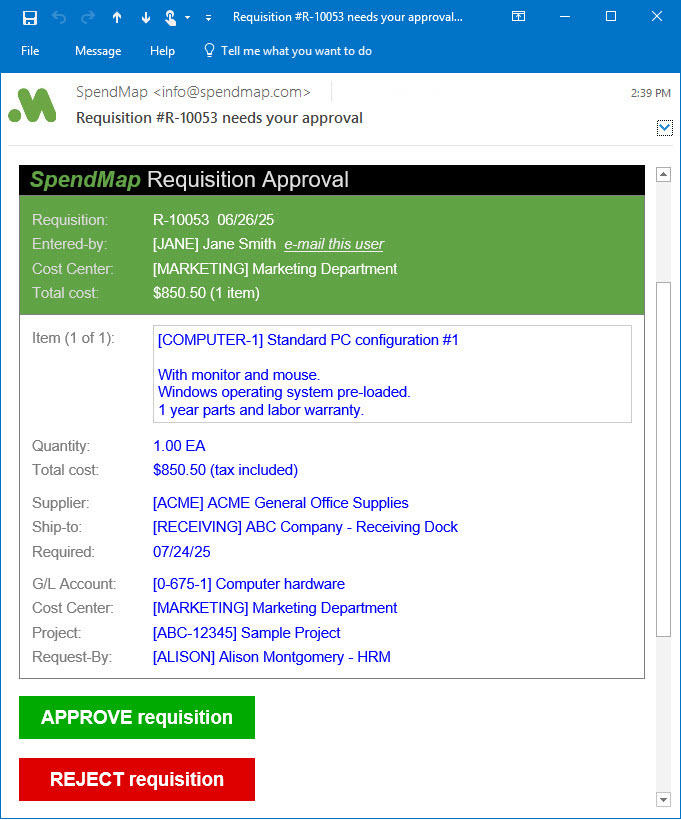
Sample email notification in Outlook
With SpendMap's Email Approval feature, you can approve and reject/deny requisitions right from the body of the email notifications that you receive from SpendMap, without having to log in to the system.
For details on how this fits into the overall requisition approval process, please see Requisition Approval Routing.
When you use this optional feature, SpendMap will send an HTML email to the Approver(s) with the same sort of information that you see on the Requisition Approval Screen in SpendMap. When the Approver clicks the [Approve] or [Reject] buttons in the email itself, a response email will be sent back to SpendMap, which will update the requisition accordingly.
The HTML email messages are "mobile-responsive", so you can approve orders quickly and easily on your smartphone or tablet while out of the office, whether connected to the Internet or not.
The email notifications can also be customized to your needs, so the email messages in your system may not look exactly like the sample above. Please contact SpendMap Client Services if you would like fields added or removed.
This fast and easy way of approving requisitions will be useful in many/most cases but there may still be times when your requisition Approvers will still want to log in to SpendMap to access more advanced functions. For example, they may need to modify the requisition, add additional approvers, or approve/reject individual line items (email approvals can only be used to approve/reject the ENTIRE Requisition). Therefore, there is also a link to "Log in to SpendMap" at the bottom of the email, to access the advanced options from within SpendMap itself.
IMPORTANT: Requisition Approvers must NOT modify the subject line of the response email that is sent back to SpendMap, as it contains special information needed by SpendMap to process the request. If needed, Approvers can enter notes in the body of the response email itself (between the special line indicators), and their comments will be added to the Internal Notes for the Requisition.

Email Approval Settings Screen
This screen is used to enable and configure the Email Approval feature, as described above.
For On-Premise/installed systems, click the [Setup Email Account] button to configure the email account used for this feature. This does not apply to the On-Demand/Cloud version. Please contact SpendMap Technical Support for instructions.