Searching for codes and documents
Throughout SpendMap, you can search for Master File codes, such as item codes (part numbers), supplier codes, account codes, etc., as well as Purchase Orders and other document numbers.
The Lookup (search) feature is available on all fields that have a  button to the right...
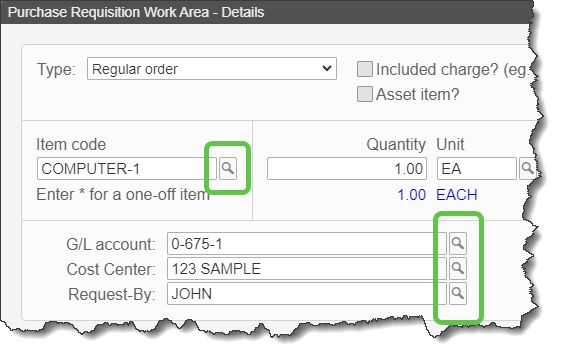

Available Actions
You can either left or right-mouse-click on the button...
Mouse Action |
Result |
Left-Click (basic Lookup) |
•Display a Lookup list in alphabetical order, starting from the top/beginning of the file. •To perform a left-to-right search to find records that start with certain characters, enter the characters in the field before clicking •For master file Lookups, the left-to-right match will either be on the code or the description, depending on the settings in Sort Options for Master File Lookup. |
Right-Click (advanced |
•Display the extended Lookup options. •You can also access extended Lookup by selecting the button at the bottom of the Lookup list. |
Various options are available by way of buttons and icons on the Lookup List...
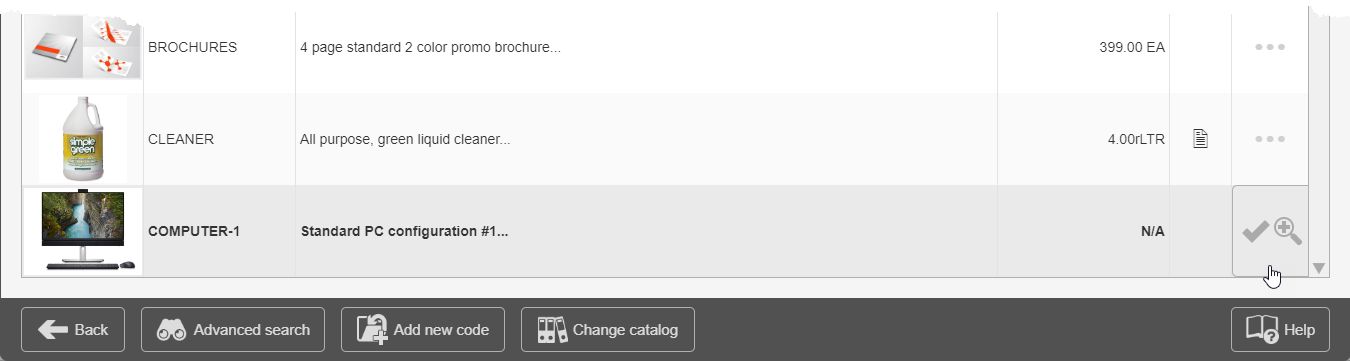

Extended Lookup Options (Advanced Search)
When you right-mouse-click on the button or select at the bottom of the Lookup List, you will be presented with a list of fields that you can search by.
This is also used when filtering reports with a custom filter.
You can enter information (search filters) in one or more fields, then click [OK] to find matching codes.
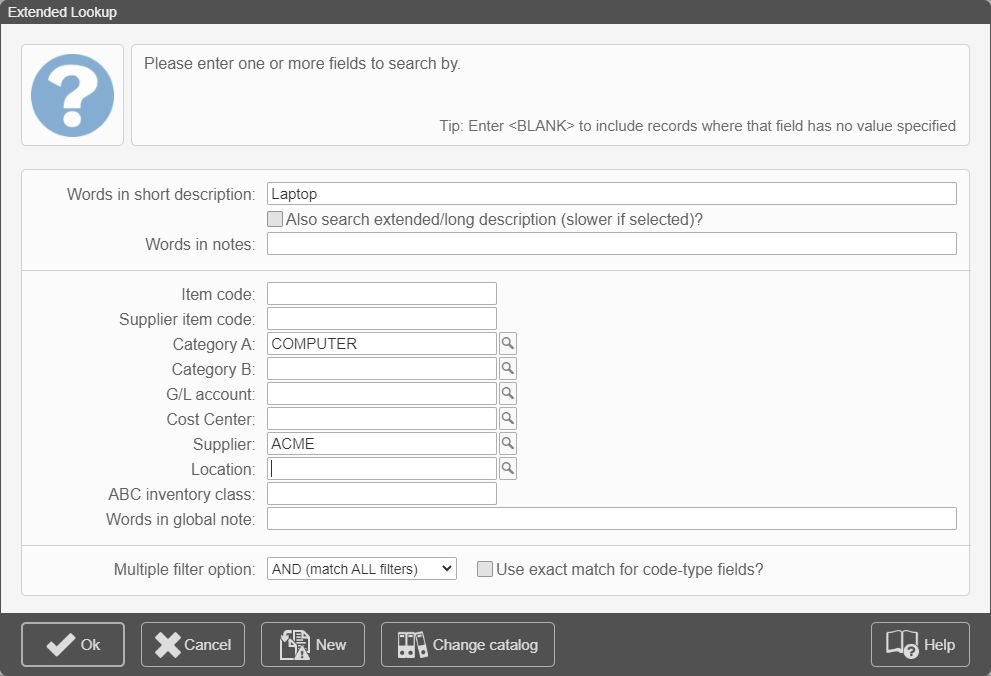
Keyword Search (searching words in description)
When searching on description and internal notes field, you can perform “Google-like” keyword searches, using one or more keywords.
You can optionally use one or more of the following operators: AND, OR, NOT, () and ""
Searching Code Fields
Left-to-right Match (default): When searching on code fields (i.e. master file codes and document numbers, as opposed to a free-form description or notes field), the system searches the field for a left-to-right match by default.
Exact Match: To override the default left-to-right search behavior, you can optionally use the “Use exact match for code type fields” option at the bottom of the screen.
Partial Match: You can search WITHIN a master file code or document number, using the "*" (asterisk) wildcard character. For example, "*ACME" would return results for suppliers that have ACME anywhere in the supplier code, including ACME (exact match), ACME-XYZ (left-to-right match), 123-ACME-456 (match within code).
Searching for Blank Fields
To find results with the applicable field blank/empty, enter "<BLANK>" (without the quotes) in the applicable field(s). For example, when searching for Purchase Orders, entering "<BLANK>" in the G/L Account field on the search screen will return a list of POs with no G/L Account codes specified.
Keyboard Shortcuts for Popular Search Options
The following keyboard shortcuts can be used instead of the Lookup options listed above:
Key |
Results |
<?> |
•Display a Lookup list in alphabetical order starting from the top/beginning of the file. Same as left-mouse-click on the •To perform a left-to-right search to find records that start with certain characters (e.g. all items starting with 123 or all suppliers starting with ABC), enter <?> (one question mark) followed by one or more characters, then press . |
<?><?> |
•To perform a search on the first few characters of Description, enter <?><?> (two question marks) followed by the first few characters of the description, then press . |
<?><?><?> |
•To perform a keyword search on the description, enter <?><?><?> (three question marks) followed by a letter, word, or phrase, then press . |
<?><?><?><?> |
•To display extended search options. Same as right-mouse-click on the |