This Help System contains detailed information about what you will see on-screen in SpendMap, such as;
oDescriptions of each field, button, and other on-screen elements,
oHow the individual utilities and reports work,
oHow to set-up/configure each area of the system.
The sections of this Help system in the left Navigation Bar generally correspond to the menu options in the Main Menu of SpendMap.
Right-click on any menu in SpendMap to display the applicable Help section, or click the [Help] button on any screen in SpendMap for screen and field-level help.
Integrated AI Assistant
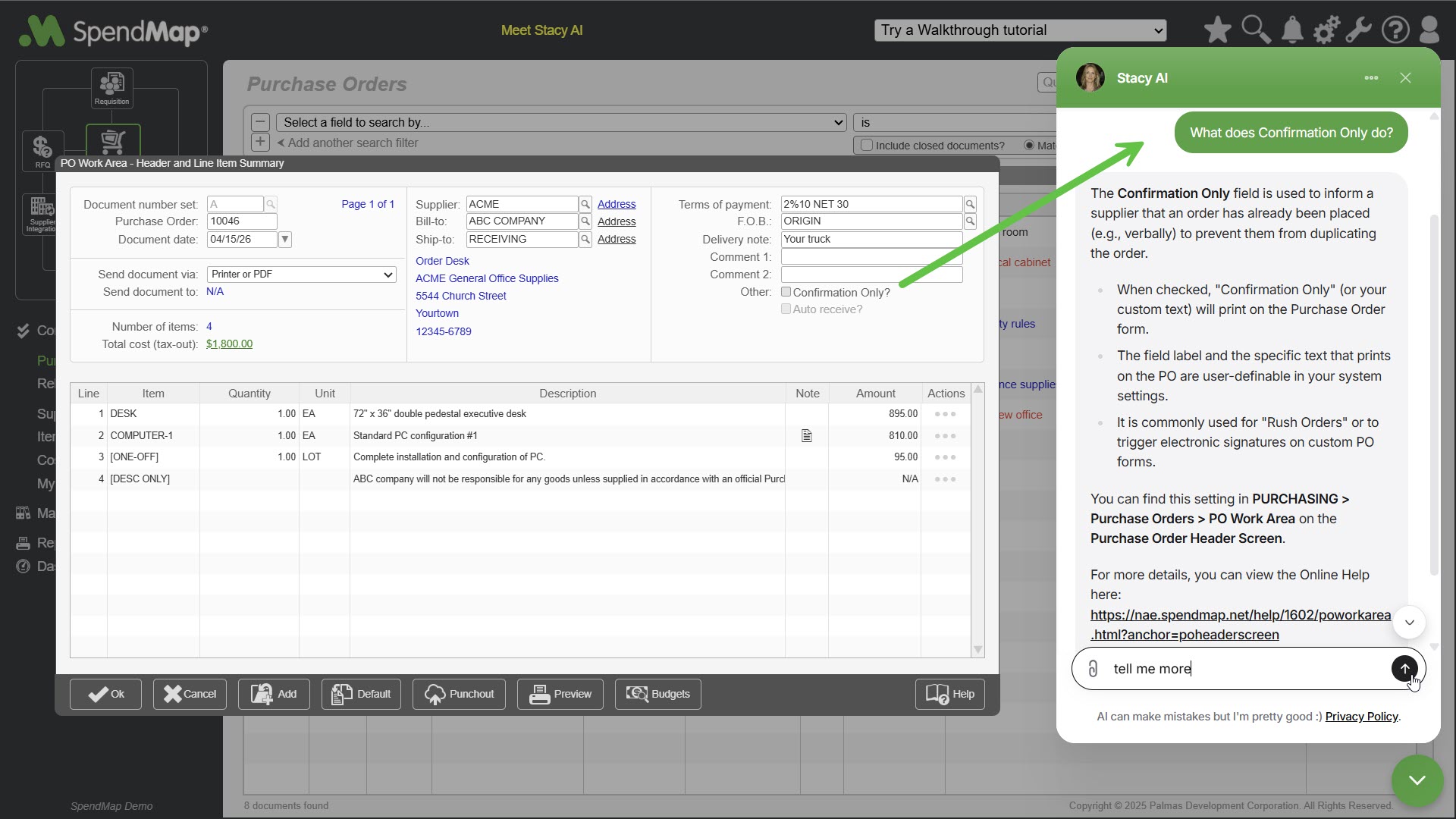
Click to view larger image
Stacy AI is integrated with this Help system and acts as a super fast librarian.
You can ask things like, "How do I set up my approval workflow?" or "Tell me about budget tracking?", for exact instructions, with links to additional detail in this Help system .
Context Sensitive Assistance: No need to waste time explaining what you're doing in SpendMap or what screen you're on; you can just ask about what you're doing in the system, like "What does this do?", or "Which fields can I rename on this screen?"
Other Training and Support Resources
oPhone support and training are available through SpendMap Client Services.
oExplore short video tutorials on our YouTube Channel that cover popular features in SpendMap.
oTry the built-in Walkthrough Tutorials, which take you step-by-step through commonly used areas of the system. You'll find the Walkthroughs in the top of the Main Menu, in the free 7-Day Demo system and other SpendMap training systems.
Terms of Use
This Help System is part of the "SpendMap Licensed Materials", provided by Palmas Development Corporation under these guidelines.