INVENTORY CONTROL > Reorder stock > Review low stock and create PO or other documents
The Reorder Stock Utility simplifies the process of replenishing your inventory for items whose in-stock balances have fallen below their reorder levels, as defined for each item in the Item Master File.
Items that need to be reordered will be listed here, and you can quickly and easily create Purchase Orders, Requisitions or other documents to order more stock.
•The Reorder Stock utility can be used to create Purchase Orders or other documents for items that need to be reordered, one item at a time. If you have a large number of items that need to be reordered, it may be more efficient to use the Item Requirements Staging Batch, which provides advanced functionality when working on many items and documents at a time, such as the ability to consolidate multiple items on the same PO or other document, default fields across multiple documents, etc. You can separately load the Staging Batch with items that need to be reordered, or use the applicable menu under the Bulk Operations icon here in the Reorder Stock Utility, to transfer items from this utility to the Staging Batch.
You can leave the Reorder Stock Utility, return later and pick up where you left off. If so, you will be prompted to RESUME your last session or start a NEW session (i.e. refresh the list of item that need to be reordered.
When starting a new session, you will see a list of options that will determine which items are included in the list. These are the same options as on the Inventory Reorder Report...
•Consider on-order balances: Since items that you’ve already created orders for will eventually be received into stock, you may want to consider these open orders in determining whether or not an item needs to be re-ordered. The types of orders that you indicate here will be added to the in-stock quantity for the respective items, which might push them above their re-order levels, thereby omitting them from the report.
•Item or Location re-order level: If you keep stock in multiple stock locations, you can generate a list of items that need to be ordered at specific locations, as opposed to generating a list of items that have fallen below their re-order levels company-wide (i.e. across all locations).
If you use location-specific reorder levels, SpendMap will compare the current stock at the specified location(s) to the re-order level for the item at each location (as indicated in the Location/Bin Details Screen).
If you use item reorder levels, SpendMap will compare the total stock that you have across all locations to the item’s overall re-order levels (as indicated in the Inventory/Locations Tab). This option is most commonly used where the individual locations are in fairly close proximity to one another and items can easily be transferred from location to location as stock is depleted.
•Safety factor: This will add a "margin of error" by artificially increasing the re-order level for each item by the percentage that you enter. That is, the system will “pretend” that the re-order level is higher by a certain percent, thereby flagging items to be re-ordered sooner, even if they are not down to their actual re-order levels. This might be used during a busy season with higher than usual item demand and/or longer than usual delivery lead times from your suppliers.
•Include items with reorder level of ZERO? If you have not specified a reorder level for certain items, these items can be omitted from the report, otherwise they will be included (if their stock level has reached zero).
•Forecast demand and consider "weeks" reorder level? This will determine whether SpendMap considers the re-order level for each item expressed in “weeks” or just the fixed (unit/quantity) re-order level for each item.
This is an optional re-order level expressed as a number of weeks worth of stock rather than a fixed quantity. The re-order level in weeks can be specified for each item in the [INVENTORY/LOCATIONS] Tab of the Item Master File.
This may be used in conjunction with the fixed re-order level. While the fixed re-order level does not consider the usage history in determining if an item should be flagged for re-order, the number of weeks supply for re-order does. SpendMap will forecast how long the available stock will last based on the usage history of the item and may determine that the item should be re-ordered, even if stock has not dropped to the fixed re-order level.
Reorder Stock Summary Screen
This is the list of items that need to be reordered. To create a Purchase Order or other procurement document for the item, simply click on an item/row, or click the [] icon in the Actions Toolbar. The types of documents that you can create will depend on the modules that are included in your SpendMap system, and in your user profile.
Pending Orders
Once you create a PO or other document to replenish stock, the item will show "" in the Complete Column, and the amount that you ordered will be added to the Pending Column. Since it may take some time for the item to actually be received from the supplier (during which time your in-stock balance will remain below the item's reorder level), when returning to this utility and refreshing the list of items, you can take these "pending orders" into account (per the "Questions and Options", above), so that you don't order the same item twice.
As you prepare your orders to replenish stock, you may want to review details of the items, such as the stock status and pending orders. You can hover your mouse over the Pending amount to see details, and the Actions Toolbar provides quick access to popular inventory status utilities and information...
•Send incomplete items to the Item Requirements Staging Batch, which provides advanced functionality when working on many items and documents at a time, such as the ability to consolidate multiple items on the same PO or other document, default fields across multiple documents, etc.
 Related utilities, settings and reports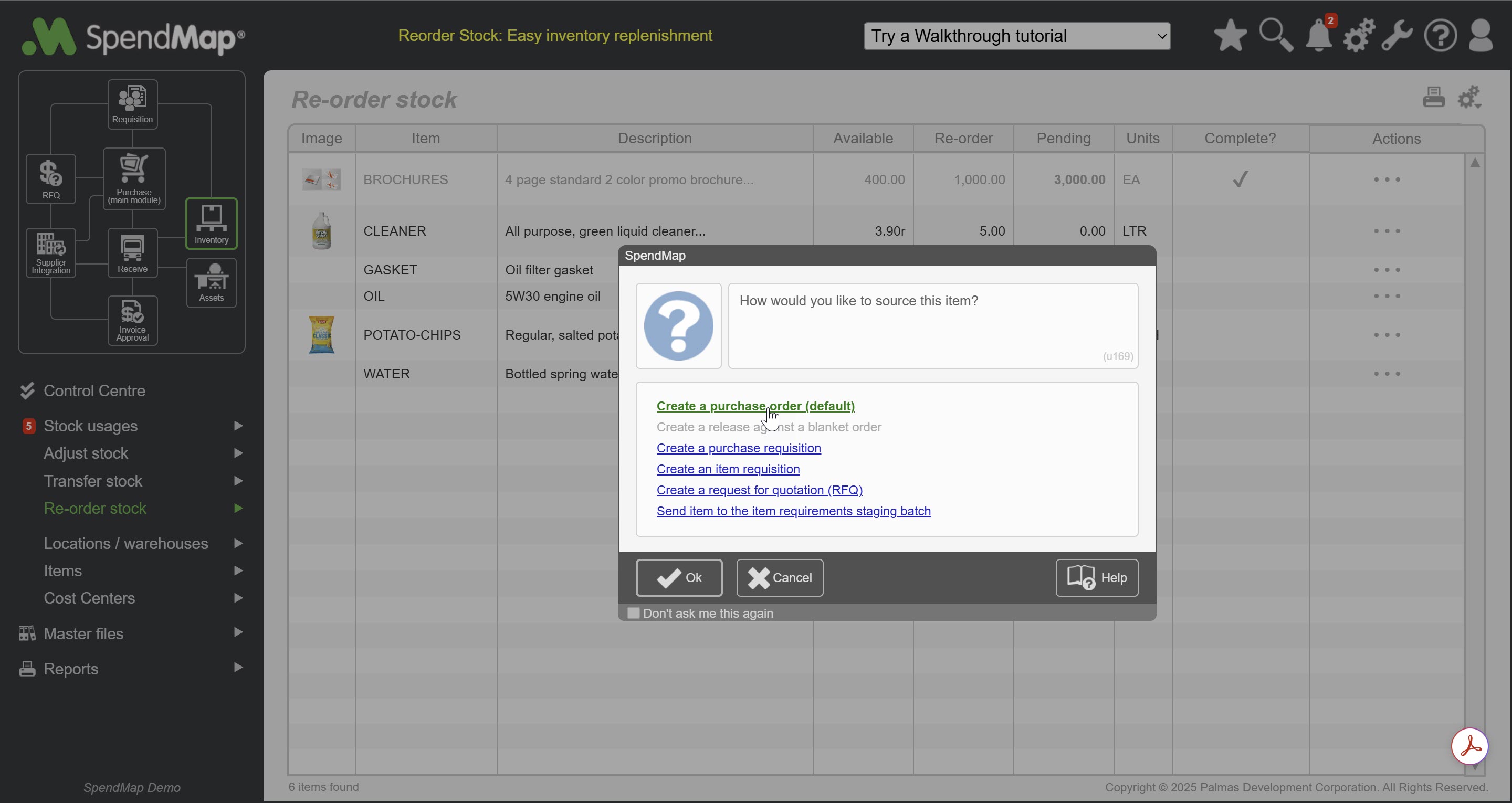
 ] icon in the Actions Toolbar. The types of documents that you can create will depend on the modules that are included in your SpendMap system, and in your user profile.